
How to Solve Facebook Connection Problems in BOKBOK
This guide shows you how to use a fresh private / incognito browser session to fully reset your BOKBOK – Facebook Messenger connection so old sessions or cookies stop causing issues.
Sometimes Facebook remembers an old browser session even after you change your password or page settings. BOKBOK uses the official Facebook connection flow, so it must respect that browser session and cannot completely ignore Facebook's cookies.
If the browser keeps an old session, the Messenger connection inside BOKBOK might point to the wrong account or page. The most reliable fix is to reconnect from a clean private / incognito session.
Step‑by‑step: reset your Facebook connection
- Open a Private / Incognito window in your browser (see how below).
- In that window, go to bokbok.app and log in to your BOKBOK account.
- From the dashboard, open your chatbot and go to Integrations > Facebook Messenger.
- If it is already connected, click Disconnect.
- Still in the same private / incognito window, go back to BOKBOK > Integrations and click Connect Page. When the official Facebook connection window opens, log in and choose the correct page.
- After connecting, double‑check that the Facebook user and page name shown in BOKBOK are correct.
How to open BOKBOK in a Private / Incognito window
Follow the steps for your browser and device. After you open a private / incognito window, use it for the full disconnect and reconnect flow.
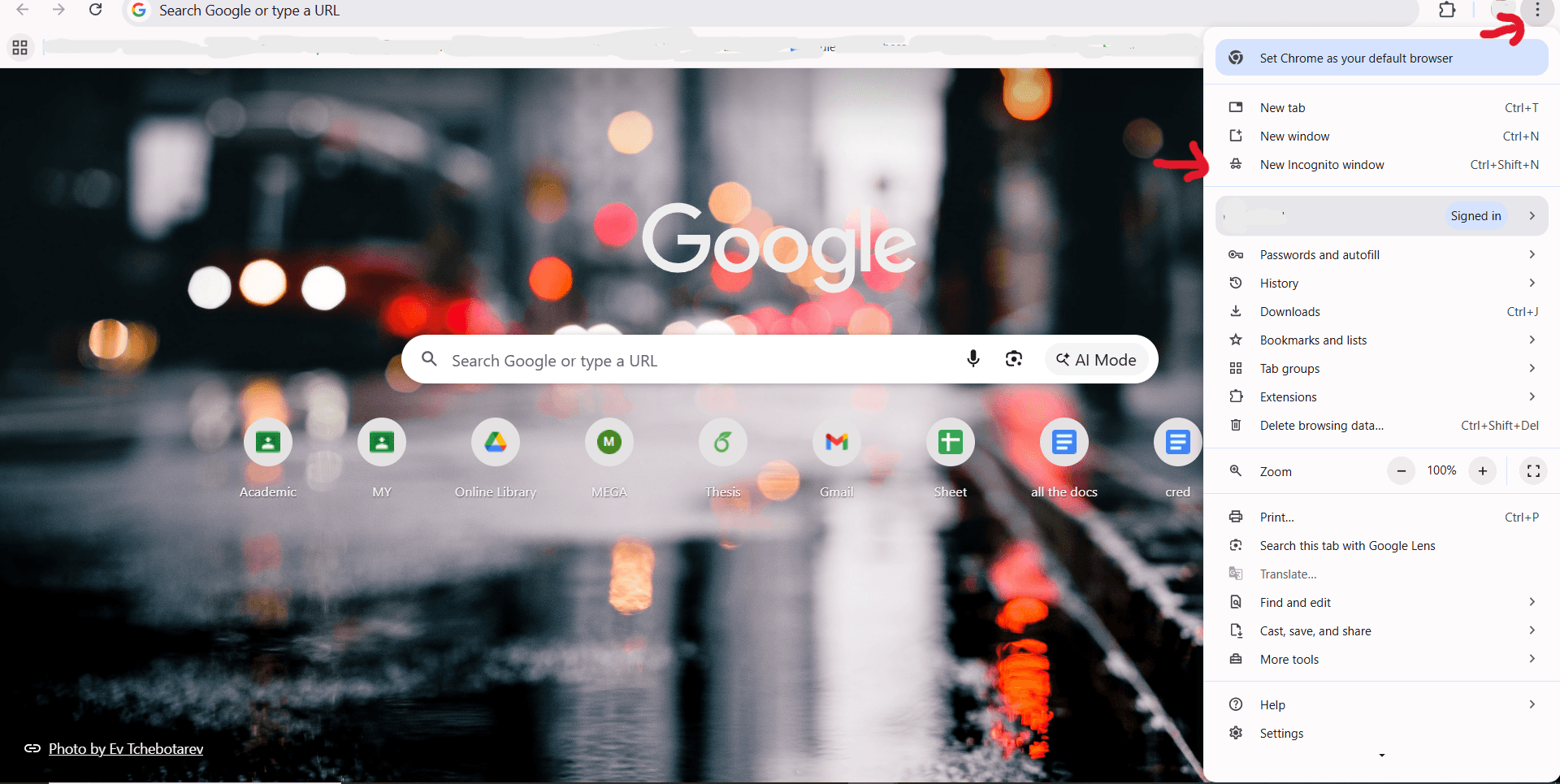
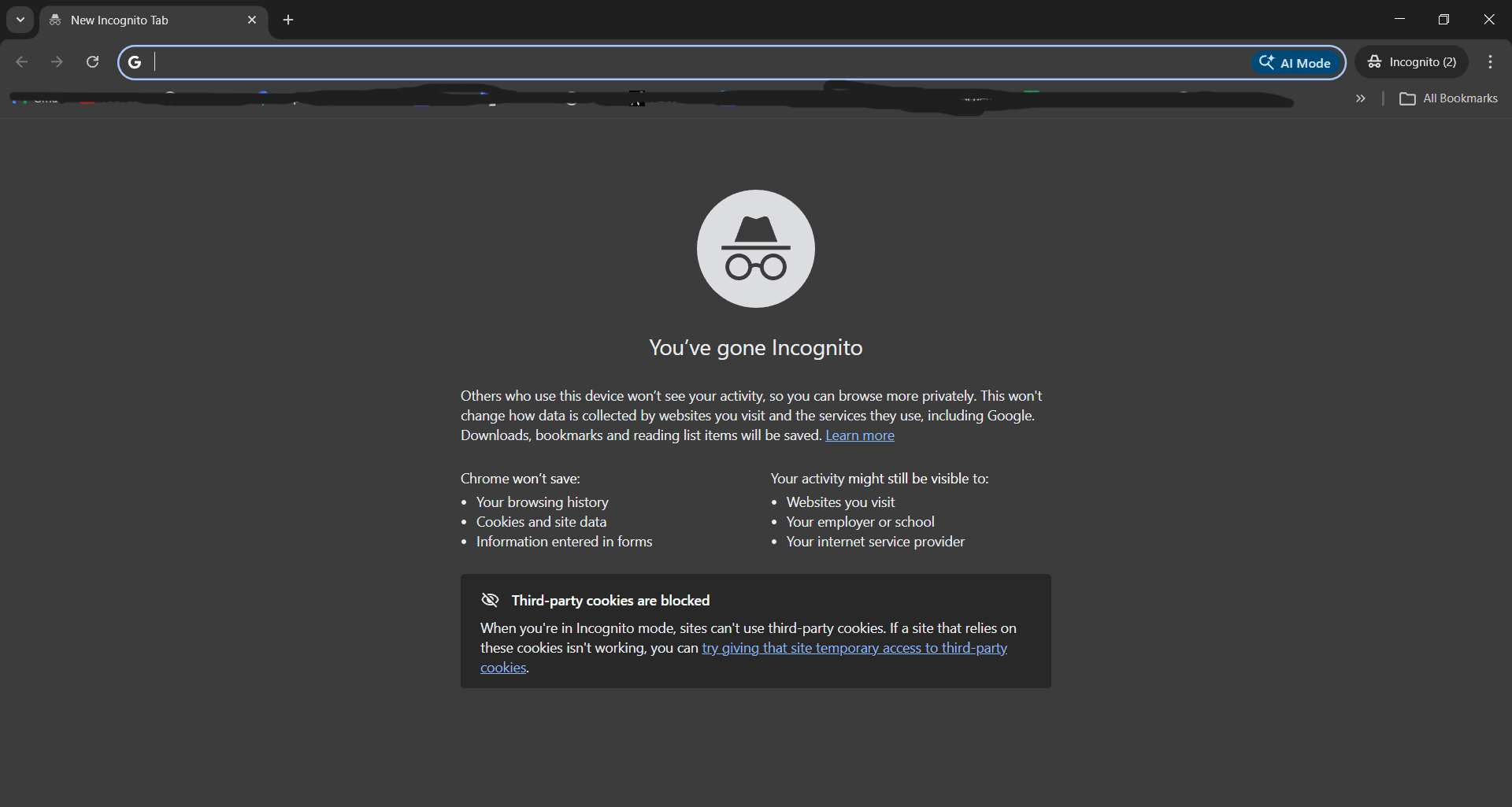
Chrome on desktop (Windows / Mac)
- Open Google Chrome.
- Press
Ctrl + Shift + N(Windows) orCmd + Shift + N(Mac), or click the three dots (⋮) in the top‑right. - Click New Incognito window.
- In that Incognito window, open BOKBOK and follow the reset steps.
Firefox on desktop
- Open Mozilla Firefox.
- Press
Ctrl + Shift + P(Windows) orCmd + Shift + P(Mac), or open the menu (≡). - Click New Private Window.
- Use that Private window to open BOKBOK and complete the reset flow.
Microsoft Edge on desktop
- Open Microsoft Edge.
- Press
Ctrl + Shift + Nor click the three dots (⋯) in the top‑right. - Click New InPrivate window.
- In that InPrivate window, open BOKBOK and reconnect Facebook.
Mobile (Chrome / Safari)
- Chrome on Android: Open Chrome → tap the three dots (⋮) in the top‑right.
- Tap New incognito tab.
- Chrome on iPhone: Open Chrome → tap the tabs icon (square with a number) → tap the hat+glasses Incognito icon → tap “+” to open a new incognito tab.
- Safari on iPhone: Open Safari → tap the tabs icon (two squares) → tap the tab group label (for example “1 Tab”) → choose Private → tap Done → tap “+” to open a new private tab.
- In that incognito / private tab, open BOKBOK and follow the reset steps.
If incognito still doesn’t fix it: Try using a different device (for example, your phone if you were on a computer, or a different browser). Open BOKBOK there, log in, and repeat the same disconnect and reconnect steps. A fresh device often avoids leftover Facebook session issues.
Keep your Messenger bot in sync
Even though BOKBOK cannot control Facebook's cookies, using a fresh private / incognito session gives you a clean slate. It makes sure Facebook shows you the right accounts and pages when you connect.
When you follow this flow, BOKBOK will always use the latest Facebook connection for your account and page, so your Messenger bot can keep replying reliably.
Try BOKBOK free
Reply to customers faster on website, WhatsApp, Facebook, and Instagram.
Official platform resources
These are public help pages from each platform (account or Page basics only). They are not BOKBOK setup steps — after your account is ready, connect inside BOKBOK or message our team for guided help.
- Create a Facebook Page
Official Meta help for creating a Facebook Page for your business.
- Switch to an Instagram Professional Account
Official Instagram help for Business or Creator (Professional) accounts.
- WhatsApp Business overview
Official WhatsApp Business introduction — account basics on their site.
Explore related topics
Dive deeper into BOKBOK features, integrations, and industry guides connected to this article.
Features
Related articles
Facebook Connection Setup with BOKBOK
Connect your Facebook Page to BOKBOK in simple steps, then fix common connection problems like the wrong account, password changes, or an old browser login.
How BOKBOK Helps Your Facebook Business Page Grow
See how faster replies and Messenger conversations help your Facebook page attract more customers.
Instagram Connection Setup with BOKBOK
Connect Instagram to BOKBOK with a Professional Account (Business or Creator) linked to a Facebook Page, plus steps to fix common connection issues.
How Facebook Page Changes Affect BOKBOK Chatbot Access
Understand why changing Facebook page details can break your chatbot access, and learn when and how to disconnect and reconnect the page in BOKBOK so replies keep working.